How to Process Document Status Updates and Deletions
In this document we will review how to update the status of a single document or multiple documents batched together. We will also cover how to delete one or more documents batched together.
How to Update the Document Status for Multiple Records
The creation and subsequent processing of documents in CBOS is controlled by the ‘Document Status’ field found on each document record. Documents are automatically assigned a status of ‘Drafted’ upon successful creation of a new document. In order to process additional steps related to the document and post to the general ledger for financial related documents, the ‘Document Status’ must be updated to a ‘Completed’ status.
For example, the Purchase Order document records shown below reflect various Document Statuses including Drafted, In Progress, and Completed.In this document we will review how to update the status of a single document or multiple documents batched together. We will also cover how to delete one or more documents batched together.
How to Update the Document Status for Multiple Records
The creation and subsequent processing of documents in CBOS is controlled by the ‘Document Status’ field found on each document record. Documents are automatically assigned a status of ‘Drafted’ upon successful creation of a new document. In order to process additional steps related to the document and post to the general ledger for financial related documents, the ‘Document Status’ must be updated to a ‘Completed’ status.
For example, the Purchase Order document records shown below reflect various Document Statuses including Drafted, In Progress, and Completed.

Document statuses may vary by type of document, but typically used statuses include:
|
Document Status: |
Description: |
|
|
|
|
Drafted |
‘Drafted’ is an initial status that new documents are assigned or may be assigned from system processes that create new records; Document is fully editable and may be deleted; the document is not considered processed and may not have related transactional records created; for example, a ‘Drafted’ sales order may not be shipped or invoiced against |
|
In Progress |
‘In Progress’ is an optional status that may be updated from a ‘Drafted’ status document to indicate work is in progress on the document; Document is fully editable and may be deleted; the document is not considered processed and may not have related transactional records created; for example, an ‘In Progress’ sales order may not be shipped or invoiced against; |
|
Completed |
‘Completed’ is a required status to move forward with a posting or the creation of related transactional records; Document is not fully editable and may not be deleted; the document is considered processed and may have related transactional records created; for example, a ‘Completed’ sales order may be shipped or invoiced against; a ‘Completed’ journal entry is posted; ‘Completed’ orders may be re-activated |
|
Closed |
‘Closed’ is an optional status that may be updated from other statuses that indicates the documents is fully closed and may not be re-activated; Document is not fully editable and may not be deleted; the document is considered processed; may not have related transactional records created; may be used to retain history on orders that may not move forward in their processing |
|
Voided |
‘Voided’ is a status that may be used to indicate the order is not moving forward or that a financial document has been reversed; Document is not fully editable and may not be deleted; the document is considered processed; may not have related transactional records created; may not be re-activated; ‘Voided’ order documents have their quantities set to “0”; ‘Voided’ financial documents like invoices have their status updated to ‘Reversed’ and another document created with a ‘Reversed’ status which creates the reversing journal entry |
|
Reversed |
‘Reversed’ is a status that indicates the selected record has been reversed or voided or that it was created as a result of another record being voided or reversed; ‘Voided’ financial documents like invoices have their status updated to ‘Reversed’ and another document created with a ‘Reversed’ status which creates the reversing journal entry; |
|
Invalid |
‘Invalid’ is a system assigned status that indicates the selected record was not able to be completed or posted if financially related; these records have error messages that need to be reviewed; the document or related information may need to be updated to allow for completion or posting to occur |
Single Record Update:
The Document Status can be updated for a single document record by clicking on the gray ‘Document Action’ button and then selecting one of the available Document Actions from the list. Click in the green checkbox to complete the update or the gray checkbox to exit out with no update.
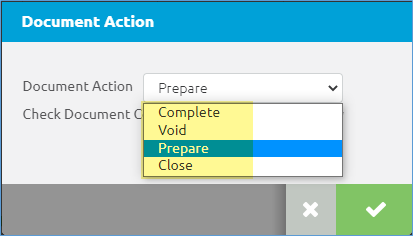
Note: document actions may vary by type of document, but typically used actions include:
|
Document Action: |
Description: |
|
|
|
|
Prepare |
‘Prepare’ updates the document status to ‘In Progress’ and checks for document consistency and inventory. |
|
Complete |
‘Complete’ processes the document and updates the status to ‘Completed’. |
|
Close |
‘Close’ processes the document and updates the status to ‘Closed’ |
|
Void |
‘Void’ processes the document and updates the status to ‘Voided’ for orders or ‘Reversed’ for financial documents; a corresponding new ‘reversed’ record may be created for financial documents; new reversed record is created – “for same date”; posting – assigns negative sign to amounts |
|
Reverse - Correct
|
‘Reverse’ processes financial documents and updates the status to ‘Reversed’; a corresponding new ‘reversed’ record may be created for financial documents; new reversed record is created – “for same date”; posting – assigns negative sign to amounts |
|
Reverse – Accrual
|
‘Reverse’ processes financial documents and updates the status to ‘Reversed’; a corresponding new ‘reversed’ record may be created for financial documents; new reversed record is created – “for entered date”; posting – assigns negative sign to amounts |
Multiple Record Update:
The Document Status can also be updated for multiple records at one time by utilizing the ‘Document Action (Multiple)’ function found in the Run Process menu. This function is available for many different types of documents including sales / purchase orders, material receipts / shipments, AR & AP invoices, customer / vendor payments, and journal entries.
In order to use this function, select two or more document records that you would like to update to the same document status. Then click on the Run Process menu to list the available functions.
In the example below, two purchase order records have been selected and the user has clicked on the Run Process functions menu.
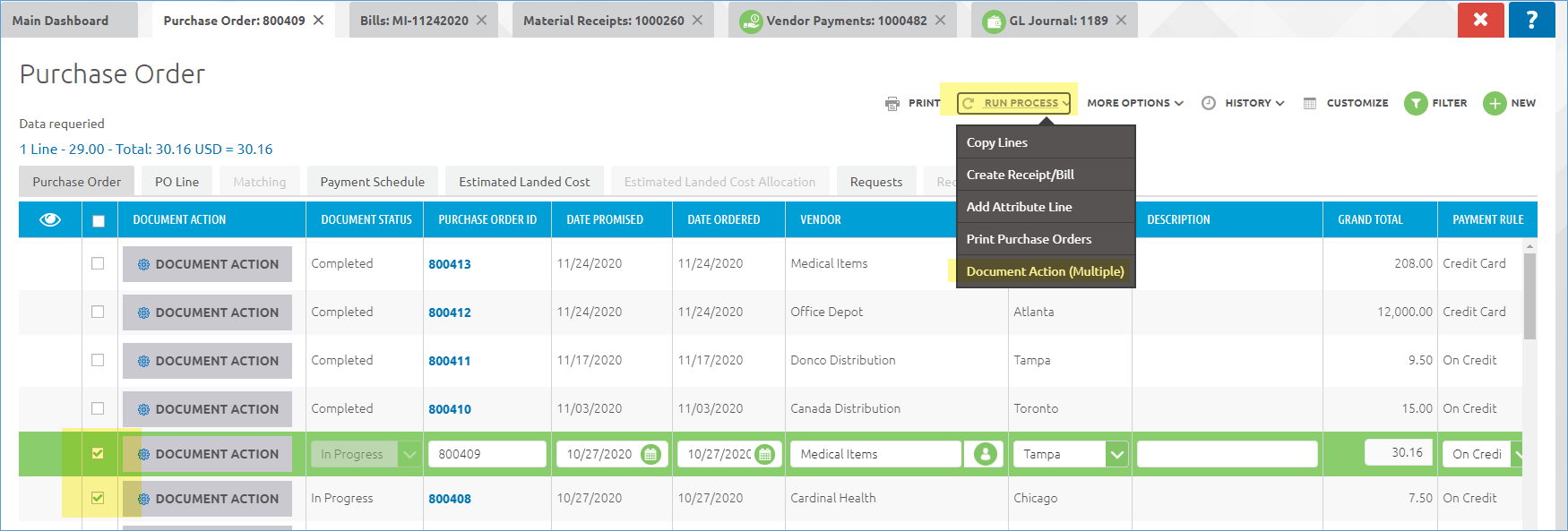
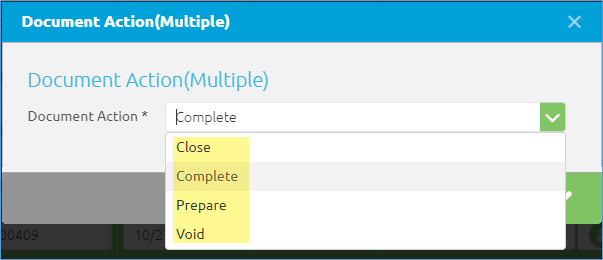
In order to update both purchase orders to the same document status, select the Document Action (Multiple) function and then choose the applicable Document Action based on the status you would like to update the documents to. In this example, we will select the Complete document action. Click in the green checkbox to finish the update or the gray checkbox to exit out with no update.
Once the document action has been completed, a window with the link to a process verification csv file will popup.
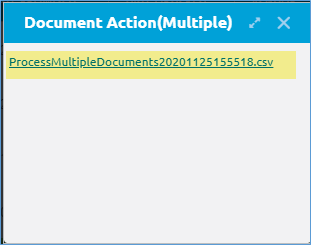
You may optionally click on this link to down load and view the results of the update. In the example below, the message tells us that the records were successfully updated to a Completed status.
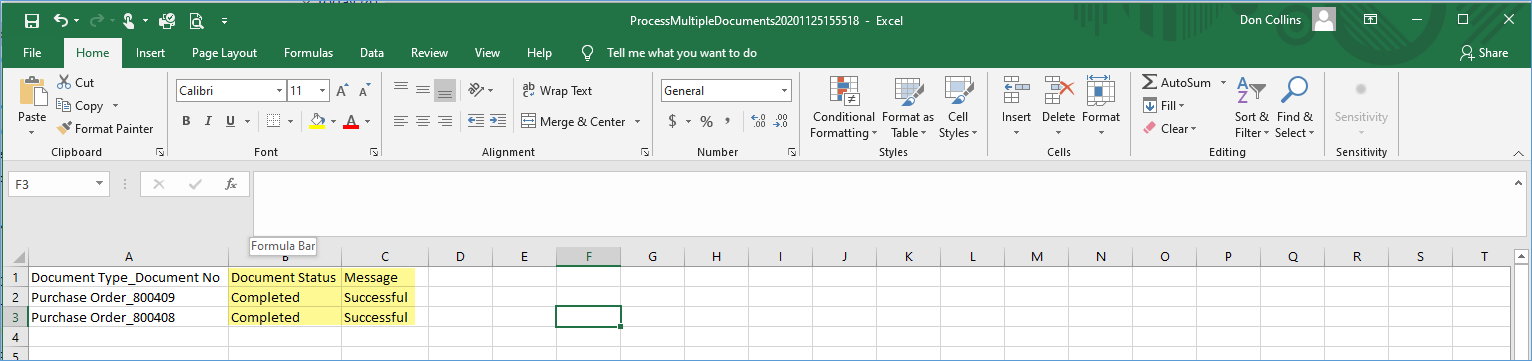
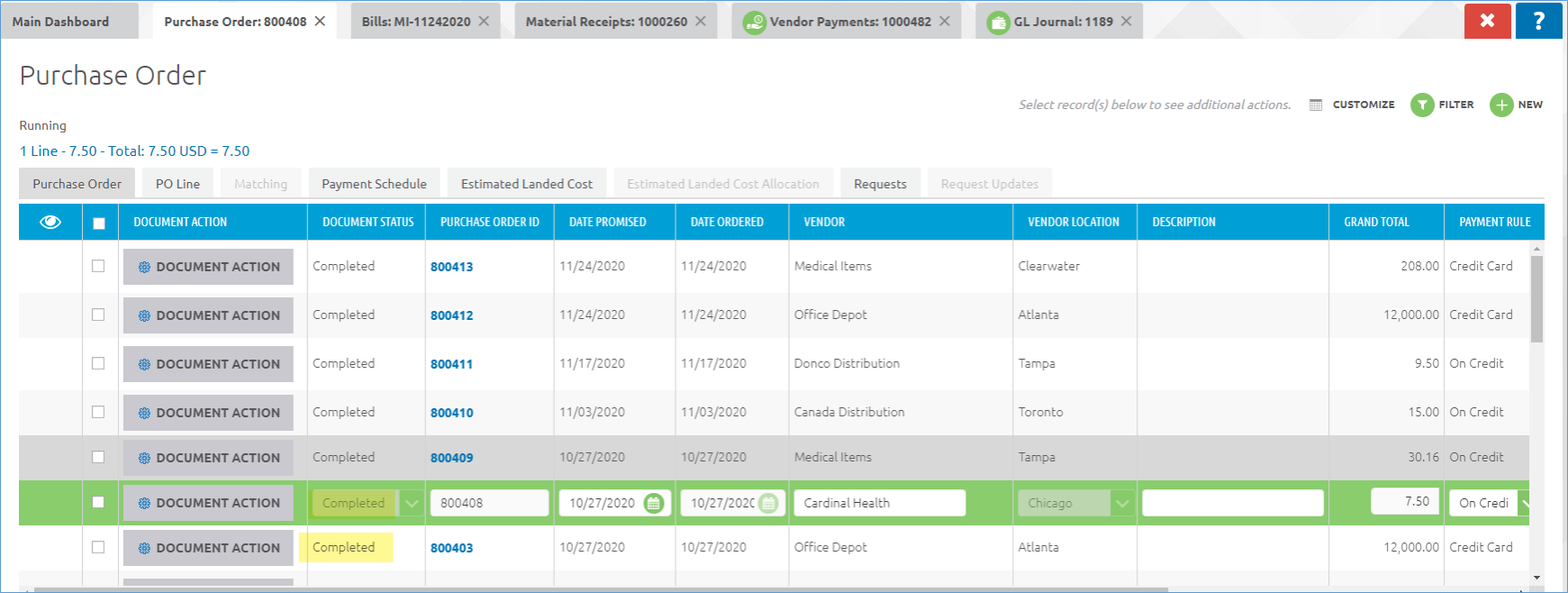
The purchase order document status has now been updated to Completed on the multiple records as shown below.
How to Process Orders in Batch
The ‘Order Batch Process’ window allows for records of a selected document type to have their current status updated to a new status based upon a selected document action.
In the example below, all Purchase Orders with a current status of Drafted with a Date Ordered of 11/25/2020 will have their status updated to Completed based on the selected Document Action of Complete.
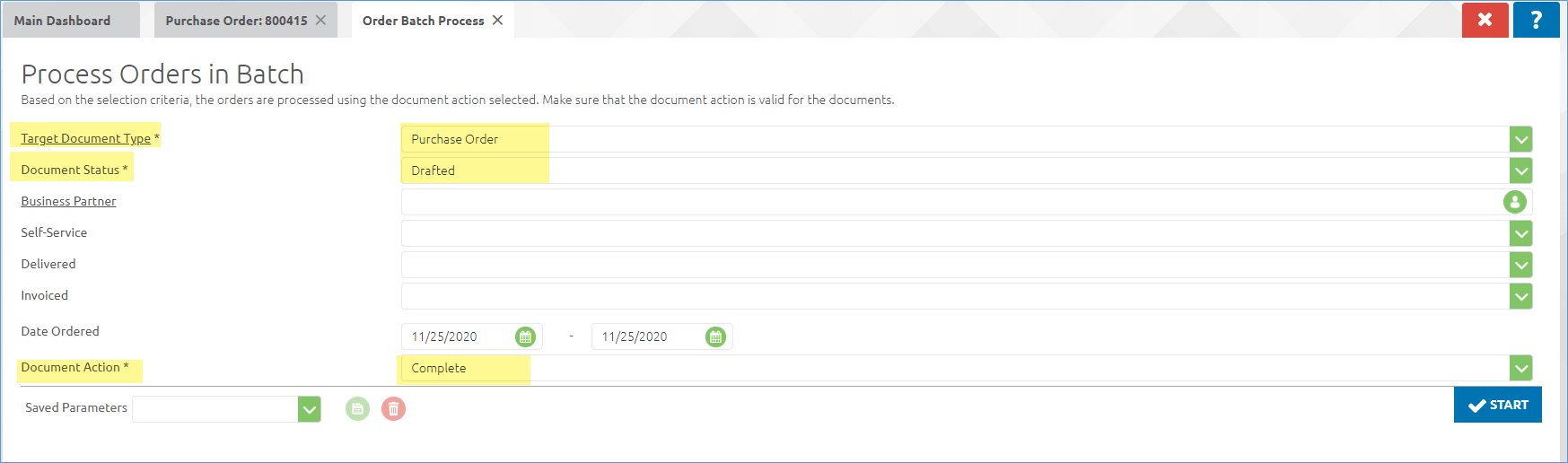
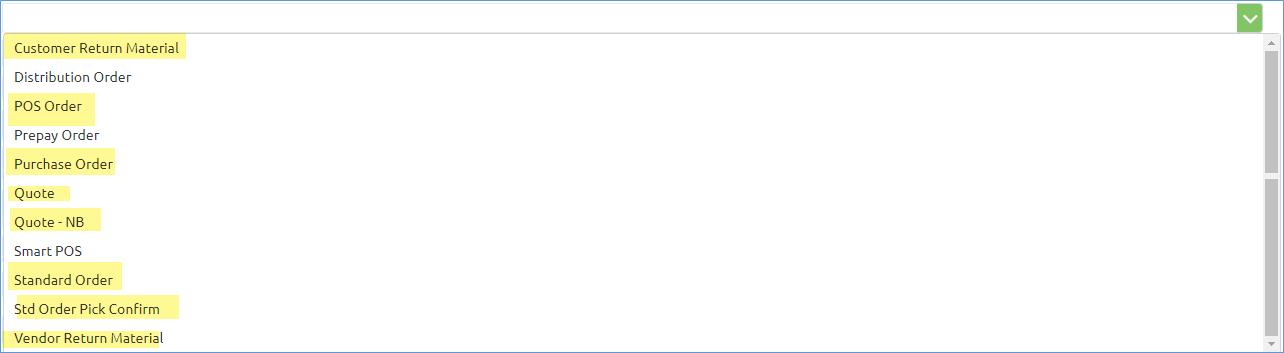
The ‘Process Orders in Batch’ application supports all of the highlighted Document Types displayed below. In other words, these Document Types may be selected from the ‘Target Document Type’ list field shown above.
How to Void Multiple Records
The Document Status can be updated to Reversed (Voided) for multiple records at one time by utilizing the ‘Document Action (Multiple)’ function found in the Run Process menu. This function is available for many different types of documents including sales / purchase orders, material receipts / shipments, AR & AP invoices, customer / vendor payments, and journal entries.
In order to use this function, select two or more document records that you would like to update to the same document status. Then click on the Run Process menu to list the available functions.
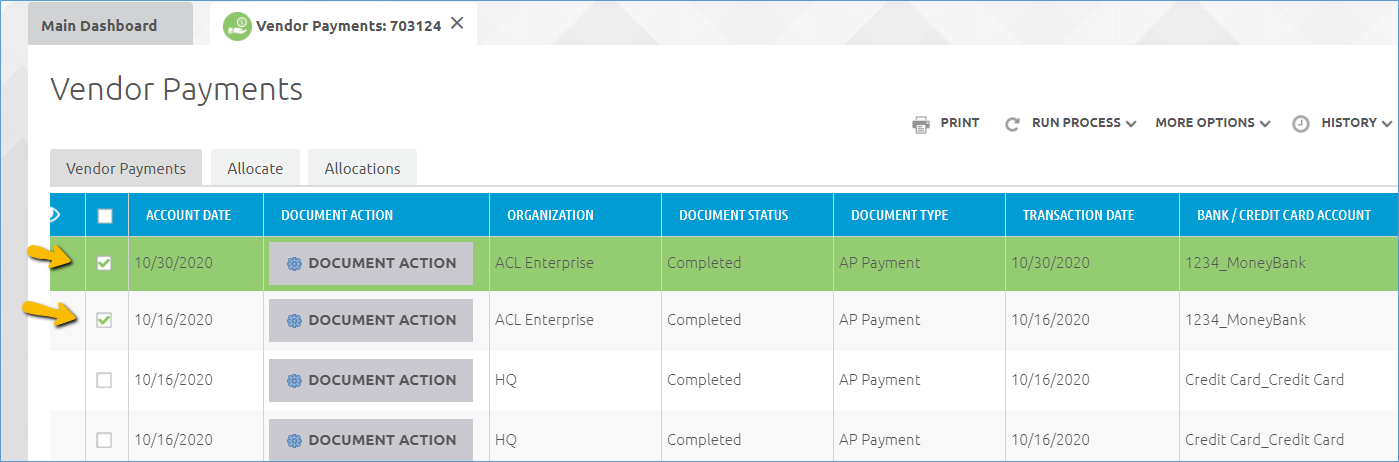
In the example below, two vendor payment records have been selected.
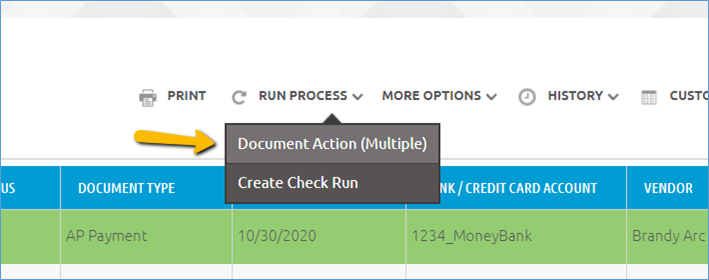
Click on ‘Run Process’ and select ‘Document Action (Multiple)’.
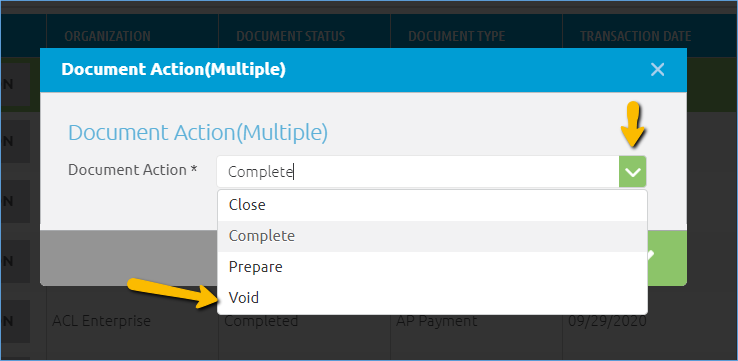
Then select “Void” from the Document Action list and click on the green check mark.
Once the document action has been completed, a window with the link to the process verification csv file will popup.
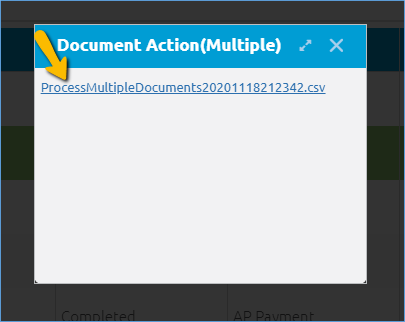
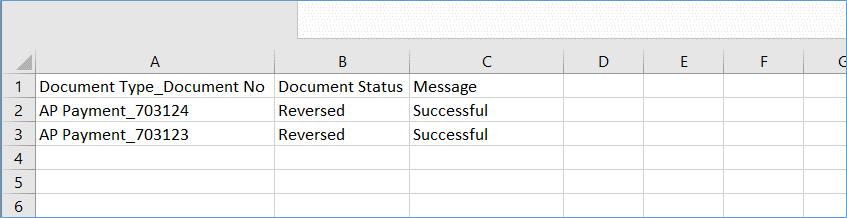
You may optionally click on this link to down load and view the results of the update. In the example below, the message tells us that the records were successfully Voided and updated to a Reversed document status.
How to Delete Single Records
Records that have a status of Drafted or In Progress may be deleted individually or as part of a batch. Orders with an In Progress status must have their ‘Payment Schedule’ record deleted prior to deleting the Order itself.
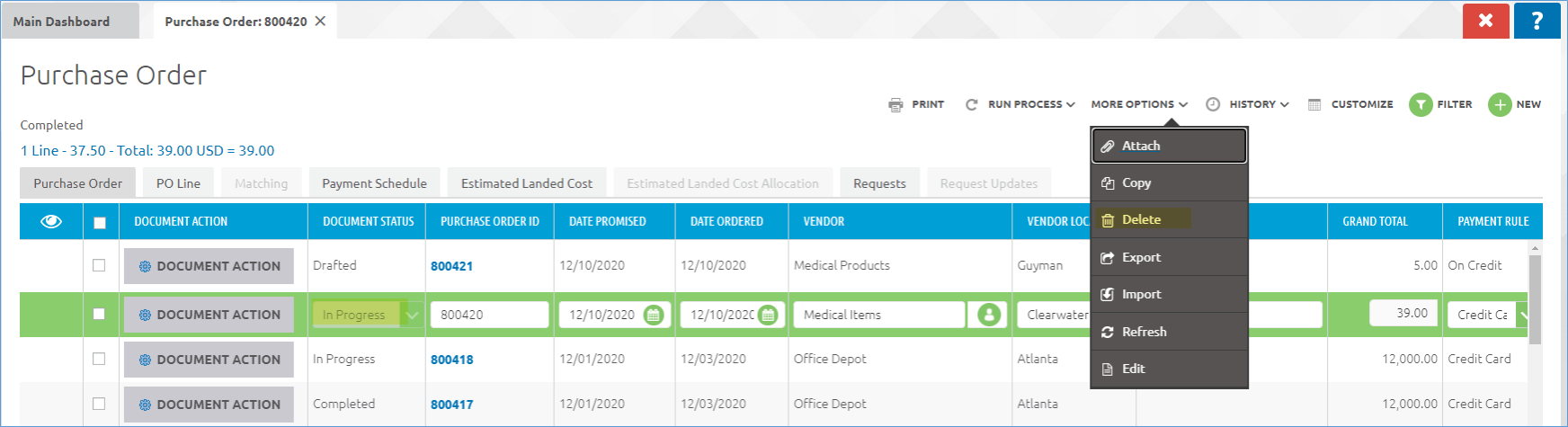
In order to delete a single document, you will need to select the document record and then select the More Options > Delete function.
In the example below, a Purchase Order in an ‘In Progress’ status has been selected to be deleted using the Delete function found in the More Options menu.
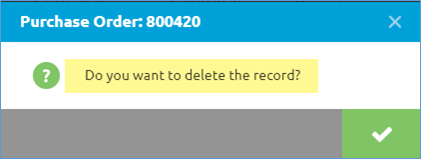
After clicking on the Delete function, a confirmation message will display. Click in the green checkbox to finish the delete or the ‘X’ to exit out with no update.
How to Delete Multiple Records
In order to Delete multiple documents, you will need to select all of the document records you wish to delete and then select the More Options > Delete function.
In the example below, multiple Purchase Orders in either a ‘Drafted’ or ‘In Progress’ status have been selected to be deleted using the Delete function found in the More Options menu. In Progress order records must have their ‘Payment Schedule’ record deleted prior to deleting the Order itself.
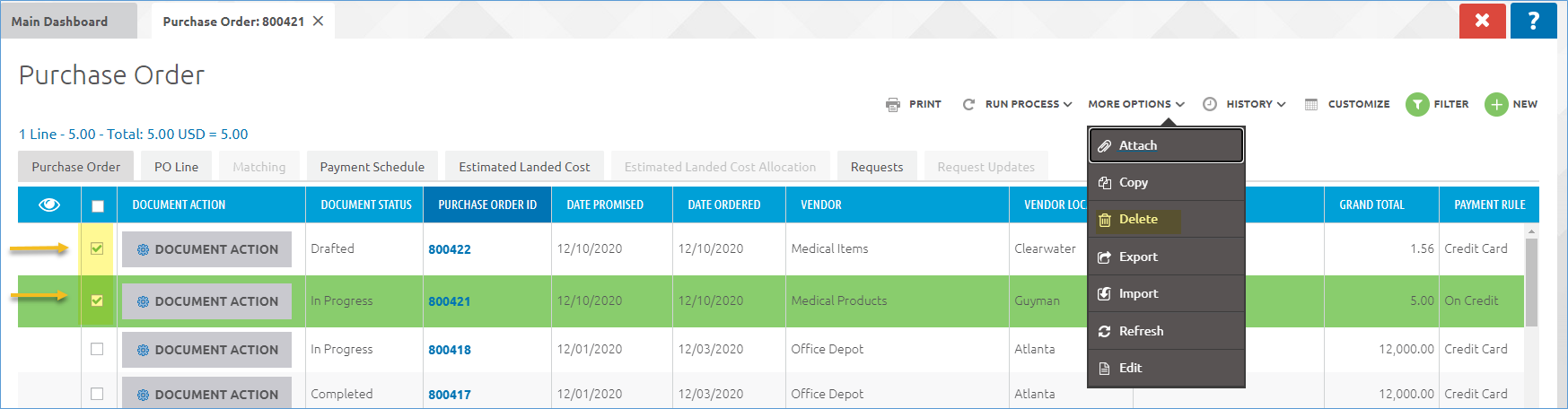
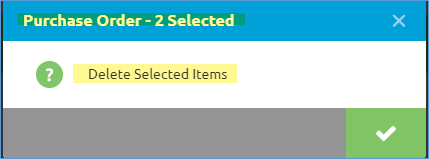
After clicking on the Delete function, a confirmation message will display. The confirmation message will show how many records were selected in the blue banner area.
Click in the green checkbox to finish the delete or the ‘X’ to exit out with no update.